Upload Teachers
With Realize you can export a list of existing teacher accounts by school, upload to create new teacher accounts for those without an account, and manually update teacher accounts. Be sure to use the upload feature to create new accounts for teachers without an account. You cannot update teacher accounts with a file upload. Select here for a tutorial on how to upload teachers or follow the steps below to upload teachers:
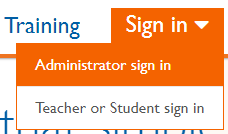
- Go to Savvas Realize and sign in as an Administrator.

- Select Manage Teacher Accounts on the Teachers tab.
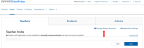
- Select the blue Upload button under Upload Teachers. This takes you directly to Savvaswhere you can complete the following steps to upload teachers.

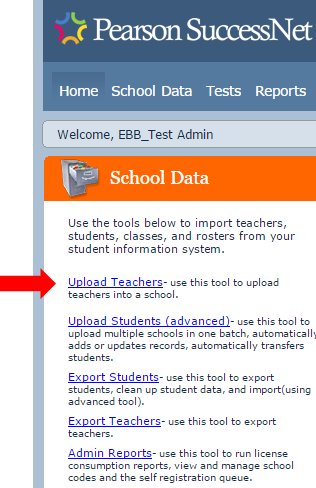
- Select Upload Teachers in the School Data menu on the Home Page.

If you are a school administrator you will see your school name automatically populated in the Select school field. If you are a district administrator you will need to select a specific school for which you would like to upload a list of teachers. Teacher uploads must be completed for each school individually so that teacher accounts are correctly associated with the school.


- Select the Help link to download a template.
- Enter required information for each teacher who does not already have an account for a Savvas learning platform.
Use of the following characters is not supported with teacher uploads and may result in the error "Failed. Try again."
: { } , - ' " \ < >
- Save completed file as a Unicode text file (.txt).
- Select your school from the Upload Teachers page.
- Browse to locate your Unicode text (.txt) file with the list of teachers to upload.
- Select Upload.
Teacher accounts only need to be uploaded one time. Once uploaded they are available for all learning platforms - including Savvas, Savvas, and Realize.
It’s important to remember that uploading duplicate teacher accounts can result in errors. It is best practice to run teacher exports prior to importing/uploading the complete list of users for classes. This enables duplicate accounts to be identified and removed before importing a list of users. Select here to review the Export Teacher Accounts help prior to uploading your teacher accounts.