Teacher Self-Registration Overview
Teacher self-registration is a process designed to provide access to Savvas K-12 programs for authorized teachers. There are several ways a teacher can be verified in order to complete registration. Some options are configurable and only available if enabled by the district. A list of configurations and default settings in the Understand Registration Settings section are mentioned below.
Only district administrators with Realize access can change the registration settings. School administrators can see the settings, but cannot make any changes.

Teachers can only have one account per email. Any trouble accessing the account, contact the administrator.
Whether you, as the administrator account holder, manually create user accounts for teachers or send teachers an invite to create user accounts independently, we encourage all manually rostered customers to configure Teacher Self-Registration settings. Use the online help system to:
-
Activate Teacher Self-Registration by school location on the Schools menu. Learn how to do this in the Schools Page.
-
Configure Teacher Self-Registration approval settings on the Users menu. Learn how to do this using the steps below.
 Levels of Administrator Support
Each district has varying levels of support by their administrators.
High Administrator Support
Best practice for teacher registrations is to have a dedicated account administrator who can provide full support to teachers needing accounts to Savvas K-12 programs.
Go to the Manage Teacher Registrations on Realize section to learn how.
Medium Administrator Support
Some districts may have an administrator who is not able to provide full time support. For medium administrator support, it is important that the administrator performs a one time setup under Registration Settings to allow teachers to self-register using auto-verification. Verification settings should be enabled, or set to ON, and a dedicated teacher email domain should be added. This ensures that the teachers can auto-register without administrator approval. Administrators can still manage and view registrations and history on Realize.
Go to the Understand Registrations Settings below to learn more.
Low Administrator Support
There are districts that may not have dedicated account administrators, and therefore cannot provide support for teachers requesting accounts. For these districts, there are default settings enabled to assist teachers to self-register.
Default verification methods include;
-
Verification by another teacher with an existing account.
-
Verification by a marketing database (MDR) with known teachers in the school.
If teachers are unsuccessful registering using the default verification settings, verification assistance is available. Read carefully through the following registration settings to understand what is best for the school and district.
Understanding Registration Settings
There are several ways a teacher can complete the self-register process for a new account to access Savvas K-12 programs - including auto-verification or staff member approval. If auto-verifications are disabled or a teacher does not meet auto-verification requirements, a current staff member must verify and approve (or deny) teacher requests for registration. The following is a list of each option and a brief description of how they work.
-
District or School Administrators (Best Practice, Administrator Support)
The best practice for the teacher self-registration process is for an account administrator to send email invitations via Realize to teachers. Teachers then follow steps outlined in the email to complete the registration process that includes creating a unique username and password. Administrators can cancel or resend invitations at any time as well as revoke access when teachers and staff leave the school or district.
To learn more about managing teacher registrations providing full administrator support, go to Manage Teacher Registrations on Realize.
For districts that prefer to manage teacher usernames and passwords, continue using the bulk upload process. (See How to Export and Upload Teacher Accounts training materials for more information.) Sending invitations allows teachers to create their own usernames and passwords.
- Teacher Email Domain (Medium, Low Administrator Support)
A teacher can be auto-verified using their school or district email domain to register. Enabling this setting allows teachers to register without the manual approval of an administrator. This setting is OFF by default, and should only be changed to ON if teachers and students do not have the same email domain. Additional domains can be added through the Teacher Registration Settings.
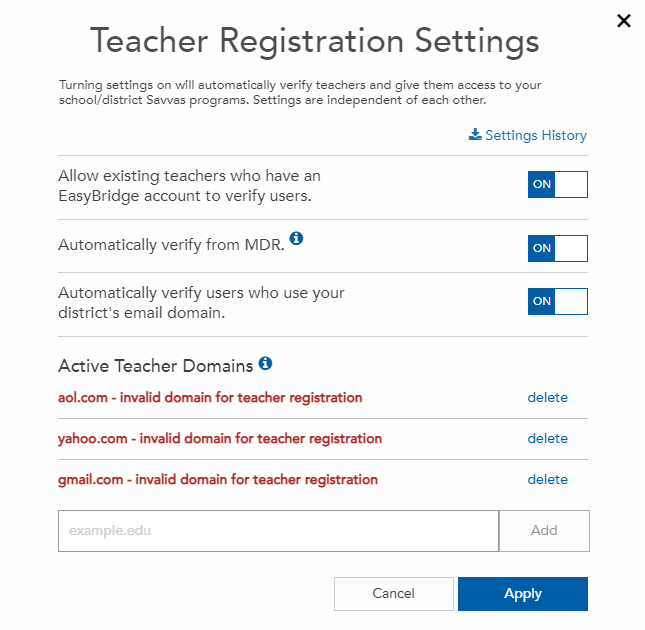
Free email domains, such as gmail.com, yahoo.com, and aol.com, are not accepted and results in an "invalid domain for teacher registration" message.

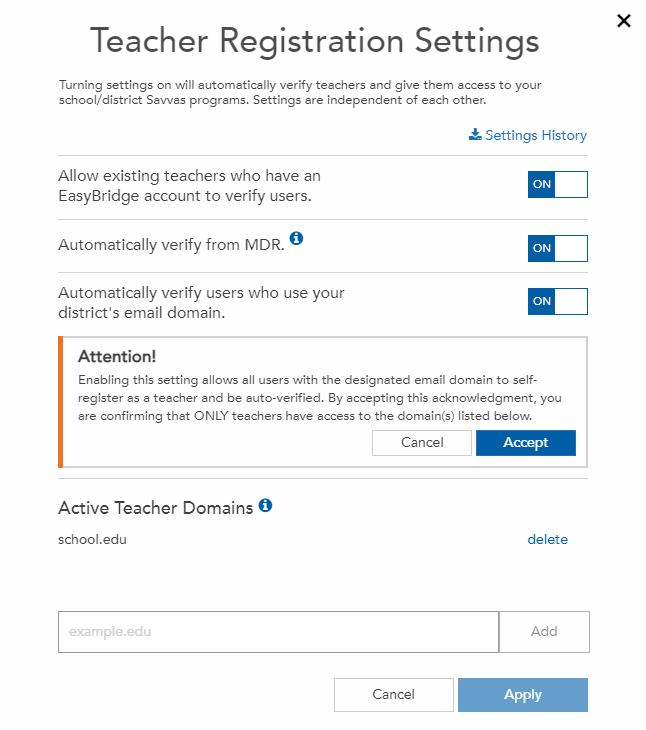
Districts that choose to enable this setting must first acknowledge and confirm only teachers and staff have the email domain entered. Follow the steps below to enable the Active Teacher Domains setting:
- Enter the district's active teacher email domain in the text box.
- Toggle the setting Automatically verify users who use the district's email domain to ON.
- Select Accept to confirm the domain entered is only used by teachers and staff.
- Select Apply to enable the settings. A message displays confirming the district settings have been updated. Changes are immediate and are applied to all schools in the district.

To learn the user experience for teachers registering with teacher email domain enabled, go to Teacher Email Domain.
- MDR (Medium, Low Administrator Support)
A teacher can be auto-verified through MDR (Market Data Retrieval), a third-party marketing database. If a teacher’s name and email address are matched in MDR’s database for their district, they are automatically verified. This auto-verification setting is set ON by default.
See steps above to disable this setting for the district.
To learn the user experience for teachers in a school or district using MDR verification, go to MDR Verification.
- Peer teacher (Medium, Low Administrator Support)
This setting is set ON by default and are presented as the first option for teachers to use in order to be verified for a new account.
If the district preference is to have administrators receive the first request, and not a peer teacher, change this setting to OFF or advise the teachers to select the administrator link to request access from their administrator.
If a school or district does not have a dedicated (or available) account administrator to manage teacher self-registrations, a teacher can submit a request to another teacher who already has credentials to the following Savvas digital programs - Savvas Realize , and Realize Reader apps. The teacher can approve or deny the request from the email.
Teachers can only send requests to teachers in their selected school.
To learn the user experience for teachers in a school or district using peer teacher verification, go to Peer Teacher.
- Staff member (Medium, Low Administrator Support)
If a school or district does not have a dedicated (or available) Realize account administrator, and a teacher has been unsuccessful getting approved through auto-verification and peer teacher, a teacher can nominate an administrator from their school or district to fill the role of account administrator. They are prompted to enter the email address as well as the school or district website for verification. Savvas Technical Support verifies the administrator and contact them by email. The requesting administrator receive an email informing that a teacher has nominated them and is requesting an approval to complete self-registration. This setting is available to all teachers and cannot be disabled.
The email contains a link to manage future teacher self-registrations directly on Realize.
To learn more about the user experience for teachers in a school or district using staff member verification, go to Staff Member Approval.
- Savvas Technical Support (Medium, Low Administrator Support)
When other verification methods are unsuccessful, a teacher can request help from Savvas Technical Support.
 Change Registration Settings
Registration settings used to manage auto-authorization can be updated through the Teacher Registration Settings link on the Users page.
To verify or change the district settings, follow the steps below:
-
Go to https://savvasrealize.com/.
- Select Sign in, Administrator sign in.
- Enter the administrator username and password and select Sign in. Savvas manually-rostered home page appears.
- Select the Users tab, then select Teacher Registration in the drop-down menu.
- Select the Registration Settings link.
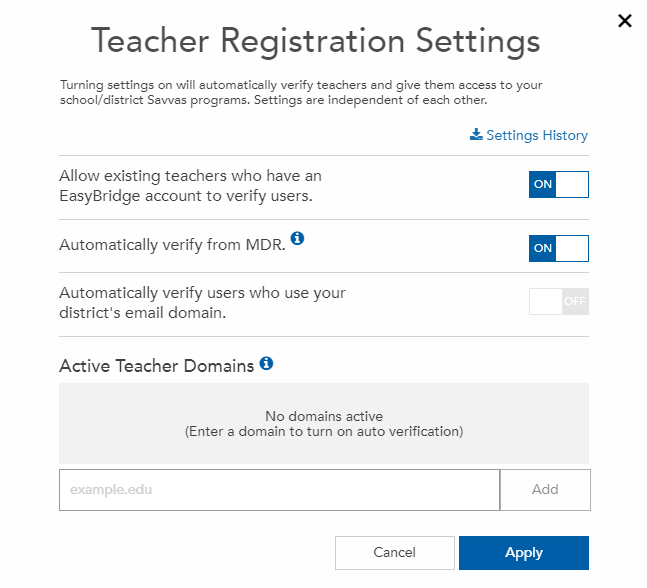
- Select the toggle button to the ON position to enable the designated auto-verification feature. To disable a process, select the toggle button to the OFF position. To learn more about a registration setting, select the blue information icon to the right of the setting.

- Select Apply to save changes.
Carefully read through Understand Registration Settings to learn how each setting works, and determine what the best setup is for the district.
Registration Setting Audit Trail
Changes made to registration settings are tracked and available for download. These changes include who made the change, what changed, and when the change was made.
Registration setting changes made to the district and saved can include enabling or disabling:
-
Peer teachers to verify and approve new account requests.
-
Automatic verification by MDR.
-
Automatic verification for users using a district teacher email domain. Additionally, email domains added and deleted are tracked and maintained on the report.
To download the Settings History, use the steps below:
- Log in to Realize.
- Select the Users tab, then select Teacher Registration in the drop-down menu.
- Select the Registration Settings link.
- Go to Settings History and download the report.
- Open the download in a spreadsheet program.
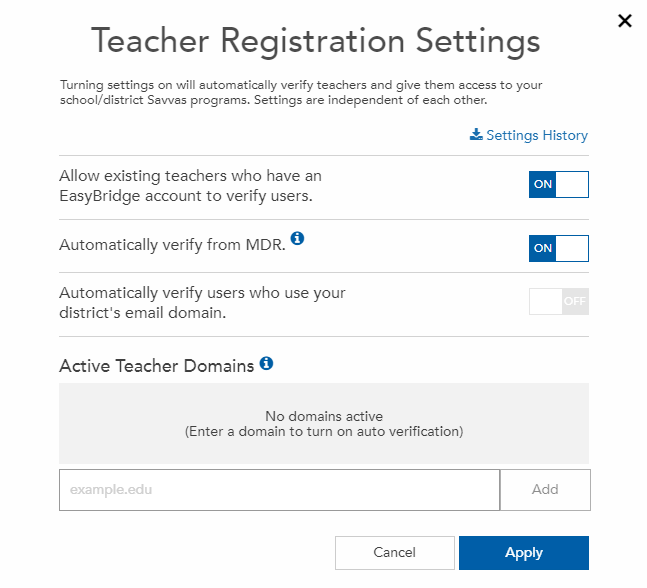
Each registration setting change saved results in an email to all district administrator(s) notifying them of the change. The email informs the administrator(s) of which settings were changed, the new status of the settings, and the email domains that were added and/or deleted if applicable. Registration settings apply to all schools in the district. The email includes a links to Realize where the administrator can login and view the changes or make additional changes if necessary.
See Also