Dyslexia Screener Report
After administering a dyslexia screener for kindergarten through third grade students in Realize, you can access and analyze a dyslexia screener report to review the results. The following sections below break down how to access and use the dyslexia screener report.
Accessing the Dyslexia Screener Report
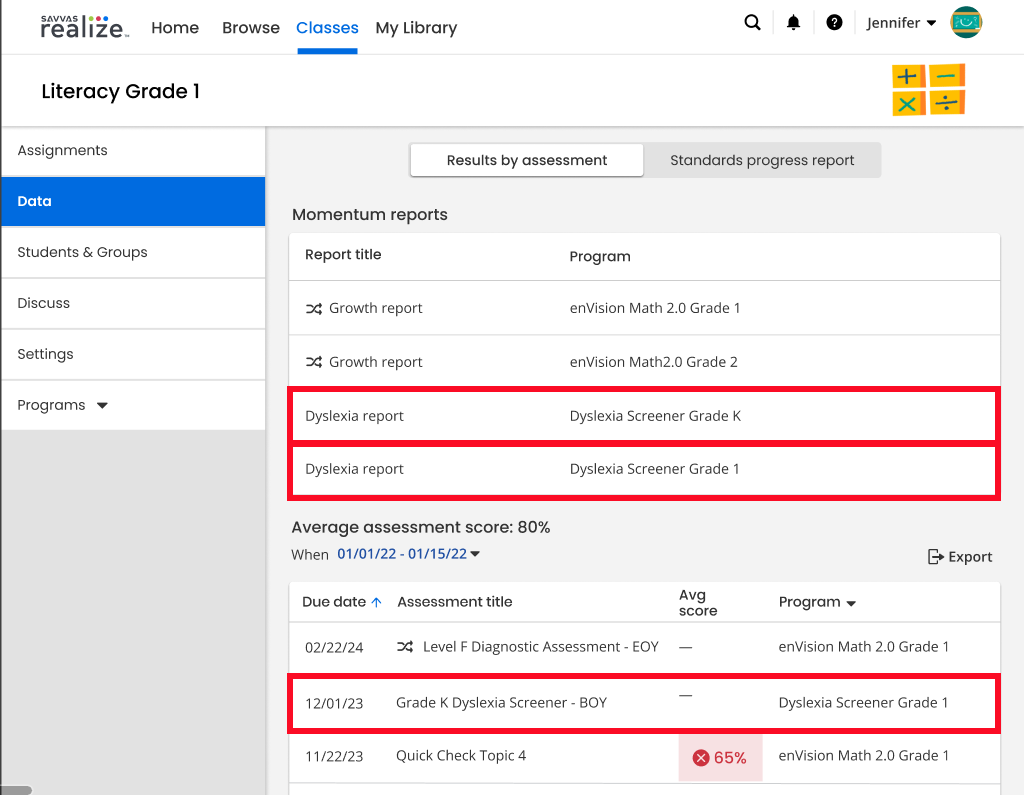
You can access the dyslexia screener report from either Momentum Reports or the Assessment list. When you view the report from the Momentum Reports section, you can see the first screener submission for each student. You can also see the report from either the beginning or the end of the year, indicated by the appropriate tabs (see Dyslexia Screener Summary for more information). When you view the dyslexia screener report from the Assessment list, you can view all dyslexia screener reports you've administered in Realize over the course of the school year.
Follow the steps below to access the dyslexia screener report:
Momentum Reports
-
Choose your class from the Classes tab, then press Data in the left navigation tab.
-
Navigate to Momentum Reports.
-
Press the Dyslexia Report option to view the report. The dyslexia screener report is accessible after at least one student in the class has completed and submitted a dyslexia screener assessment.
If both growth reports and dyslexia reports are available, the growth reports will be grouped together and displayed at the top. The dyslexia reports will be grouped together and displayed at the bottom.
The dyslexia report shows the aggregate data for all students who had been assigned that screener even if the teacher has assigned the screener to the class in separate assignments. If you assign the same assignment to the student multiple times resulting in multiple submissions of the same assignment, the dyslexia report will only account for the first submission.
Assessment List
-
Choose your class from the Classes tab, then press Data in the left navigation tab.
-
Navigate to the Assessment list.
-
Press a dyslexia screener assignment. The dyslexia screener report is accessible after at least one student in the class has completed and submitted a dyslexia screener assessment. It can also be viewed in the Assessment list section underneath the Momentum Reports section.
The dyslexia screener line item will be displayed in the Assessment list for every assignment.
The dyslexia report shows the dyslexia screener data at assignment level in the Assessment list section. For example, if the screener Grade K BOY SCR-1 was assigned on day one to some students and day two to some other students, it has two line items listed in Assessment list section.
Dyslexia Screener Summary
You can find the dyslexia screener summary when navigated from the Momentum Reports section or the Assessment list; however, the Momentum Reports view will only display reports for the first submission of the screener. The Assessment list view shows the scores for each submission.
Momentum Reports
After pressing the dyslexia screener report you want to view, you're directed to the dyslexia screener summary. The summary is composed of a dyslexia report performance section and a class overall results section. You can also press Print class report near the top of the window to print out the class report.
Kindergarten and first grade teachers have access to Beginning of Year and End of Year tabs to switch between after students have submitted both beginning of year and end of year screeners. When you first land in the dyslexia screener summary page, the switcher will default to the End of Year tab.
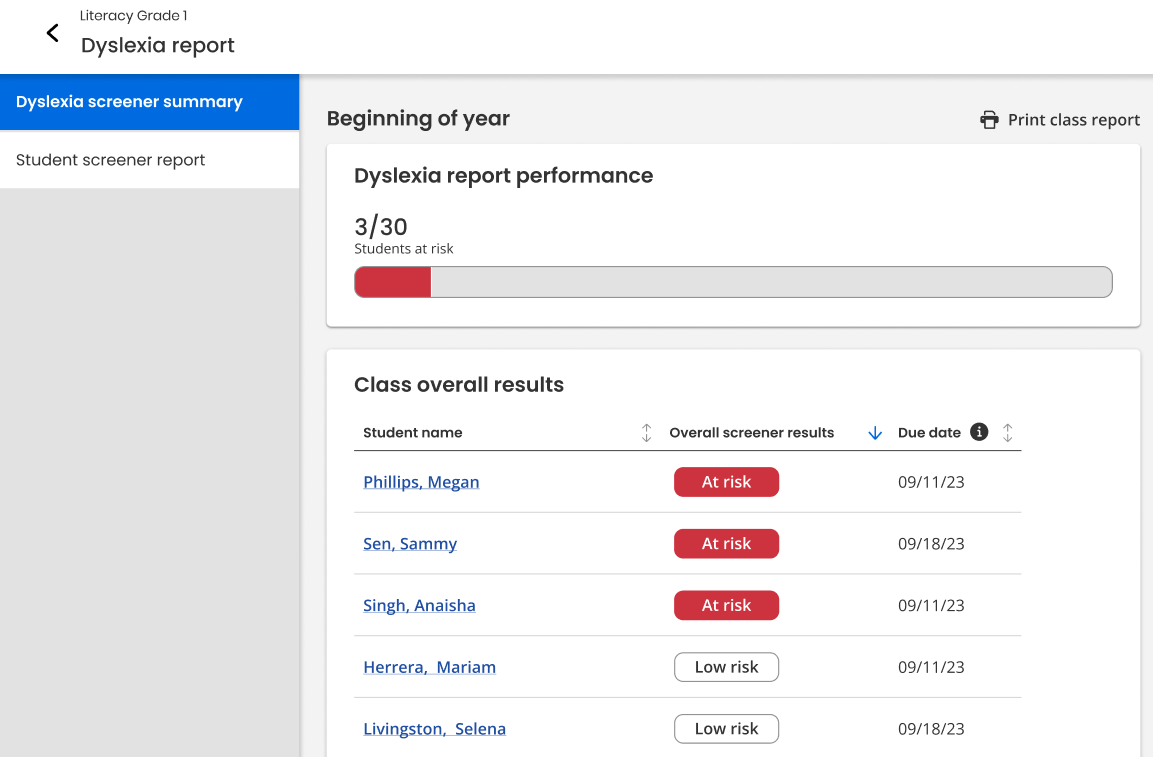
The dyslexia report performance section displays student count, which is the total number of students at risk out of the total number of students who completed the screener. The bar chart is a visual representation of this number. You can hover over the red section of the bar chart to see the number of students at risk, and you can hover over the grey section of the bar chart to see the number of students who are Low risk.
The class overall results section breaks down the results on a student-by-student basis in a table. It displays the students by name, their overall screener results, and the due date, which is the dyslexia screener assignment due date. Each column in the table is sortable by pressing the grey up-and-down arrows next to the name of each column. The default sorting is by overall screener results with At risk students at the top. Pressing the name of a student takes you to the student screener report for that student.
Assessment List
Press a dyslexia screener assignment to be taken to the class overall results for that assignment.

The class overall results section breaks down the results on a student-by-student basis in a table. It displays the students by name and their overall screener results. Pressing the name of a student takes you to the student screener report for that student. Both columns in the table are sortable by pressing the grey up-and-down arrows next to the name of each column. The default sorting is by overall screener results with At risk students at the top. You can press Print class report near the top of the window to print out the class report.
Student Screener Report
Whether you're in the dyslexia screener summary for Momentum Reports or the Assessment list, you can access the Student Screener Report by pressing the tab below the Dyslexia Screener Summary tab. You can also access the student screener report for a specific student by pressing the name of a student in the class overall results section in the dyslexia screener summary.

The student screener report displays the results of the dyslexia screener for a specific student, assessing whether they are At risk or Low risk. You can choose the student screener report you'd like to analyze by choosing a student from the drop-down menu at the top of the report containing a list of students in your class. If you're viewing the student screener report from Momentum Reports, you can press Print student report near the top of the window to print out the student report.
Pressing the Overall Screener icon opens a pop-up message. This message is different for each grade; for example, for kindergarten Beginning of the Year screener one, the message is "The student must be Low risk for both Letter Sound and Blending to be Low risk overall.
If you're viewing the student screener report from Momentum Reports, you can press the Edit results button to edit these scores. Red text indicating that you're looking at the first submission is below the Edit results button; however, if you're viewing the student screener report from the Assessment list, a few important messages are visible. The first is “To edit and print student results in Momentum reports, select here.” When you press select here, it will go to the student screener report via the Momentum Reports flow where the Edit results button is available. The second message is "Only the first submission can be edited."

If you assign the same screener to a student multiple times, each submission from the student will appear in the Assessment list, and the student screener report from the Assessment list cannot be edited; however, if you're viewing this screener from Momentum Reports, then only the first submission of the screener is shown. You can edit only this submission.
By default, the student screener report displays a condensed view of the results. In this state, you can see the screener name, the screener score tag, and the screener score. Pressing the information icon next to the score opens a pop-up explaining what the score means for that screener.
Press the arrow to the left of each screener name to expand the specific screener, or press Expand all at the top right of screener section to expand all available screeners.
Expanded View
In this view, you're able to view additional information such as the list of the items available in the screener, correct answers, student responses, and correct/incorrect icons for each item of the screener.

You can also press the Play Correct Answers button to listen correct answers for all items of the screener and press the Play Student Responses button to listen student responses for all items of the screener. Press the Play  icon to listen to the correct answer or student response for a specific item.
Grade Level Breakdown
Depending on the grade level that you teach, you may see more than one screener report for the beginning of the school year and the end of the school year. Press the expandable link below to view a table that breaks this down:
 Grade Level Breakdown
| Grade Level | Beginning of Year Behavior | End of Year Behavior |
|---|---|---|
| Grade K | When students complete screener one, they should be taken to screener two regardless of the score of screener one. The overall score is based on the scores of both screeners one and two. | When students complete screener three, they should be taken to screener four regardless of the score of screener three, and the overall score is based on the scores of both screeners three and four. |
| Grade One | When students complete screener one, they should be taken to screener two or screener three based on the score of screener one, and the overall score is based on the scores of either screener two or screener three. | Students should take screener four only. The overall score is based on the score of screener four. |
| Grade Two | Students should take screener one only. The overall score is based on the score of screener one. | No End of Year screener conducted. |
| Grade Three | Students should take screener one only. The overall score is based on the score of screener one. | No End of Year screener conducted. |
Editing Scores
You can edit screener results if you visit the Student Screener Report from Momentum Reports.

Follow the steps below to edit the results of a specific student's screener report:
-
From Momentum Reports, press the Dyslexia Report option.
-
Press a student name from the Class overall results section, or press the Student screener report tab in the left panel and choose a specific student from the drop-down menu; afterwards, press the Edit results button. You are now in edit mode.
-
There are toggles indicating Correct or Incorrect next to each question. Press a toggle to switch it between Correct or Incorrect, changing the result of the item.
-
When finished, press the Save changes button or the Cancel button at either the top or the bottom of the page. Until you save a result, each result will say Unsaved under the score you changed. After saving the change, this text changes to Modified.
-
If you attempt to cancel without saving or try to leave the page without saving, you'll receive a pop-up confirming whether you'd like to save. Press Save changes to save, or press Continue without saving to proceed without saving your changes.