How to Edit Google Docs in Realize without a Google Account
If you don't have a Google account but you have to complete a Google Doc assignment, you can still complete your work. Locate your class, and then the assignment that includes the Google Doc using the steps below:
Access and Edit a Google Doc without a Google Account
-
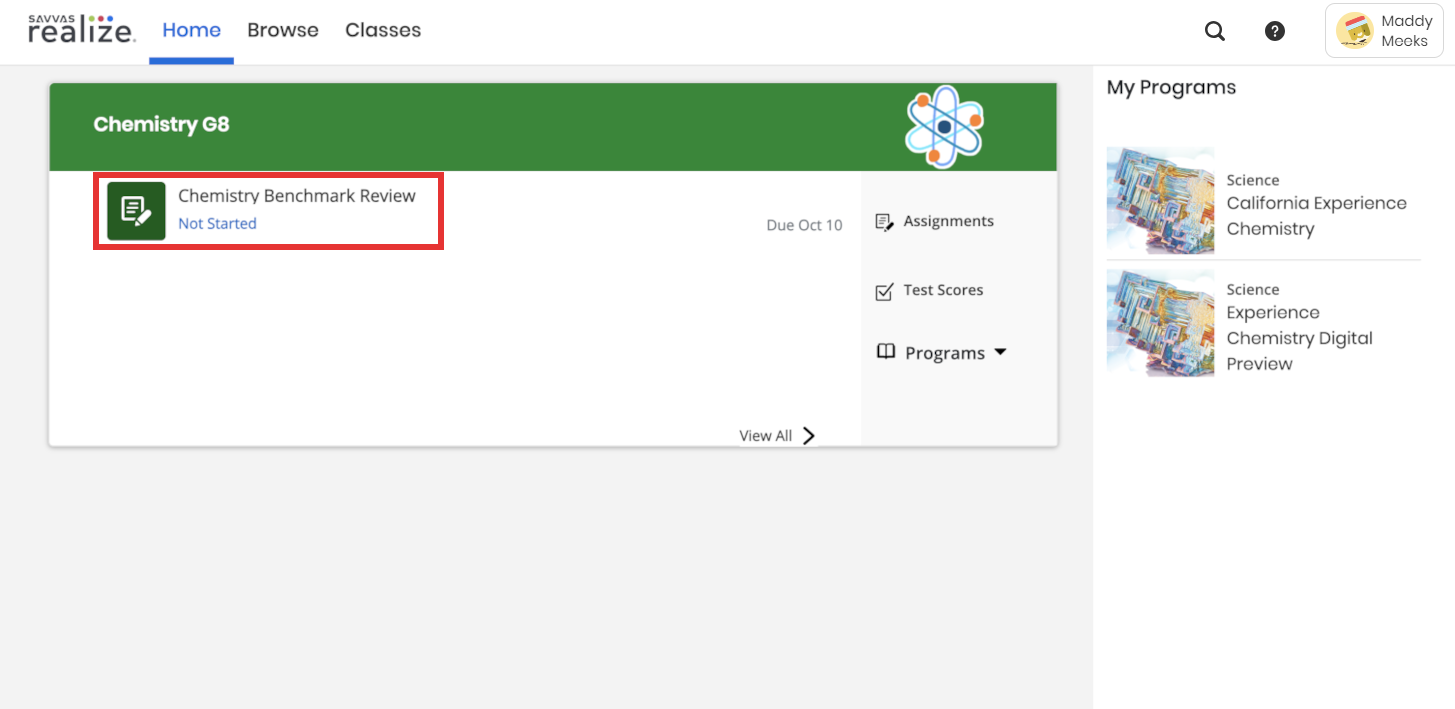
Select your class from the Realize home page, and then select your Google Docs assignment.

-
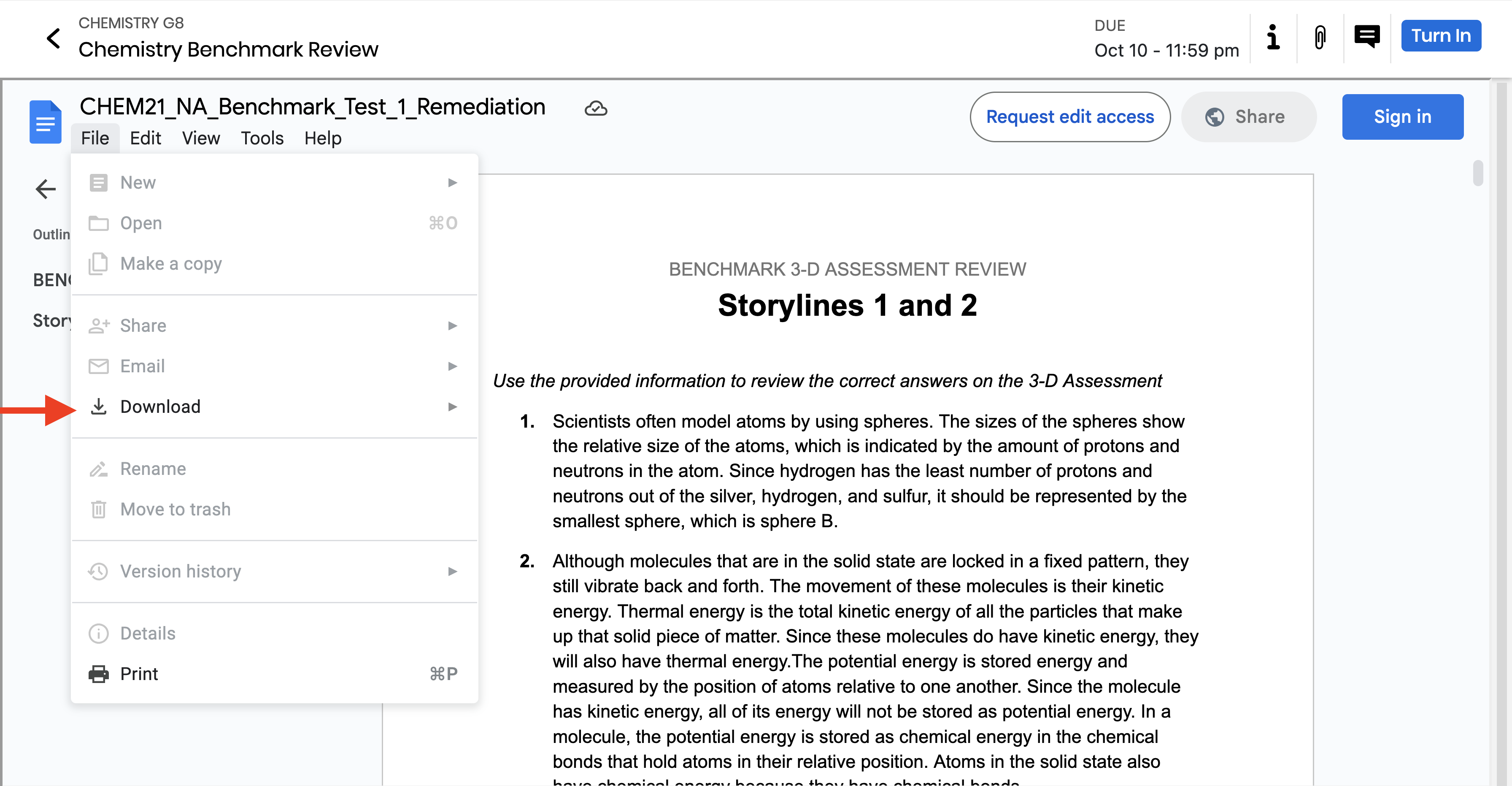
Press File, then press Download.

-
Open the downloaded file and complete the assignment.
Upload the Edited Version of Your Google Doc to Your Class
Now that you have completed your assignment, you can upload it back to your class in Realize using the steps below.
-
Go to your assignment in Realize.
-
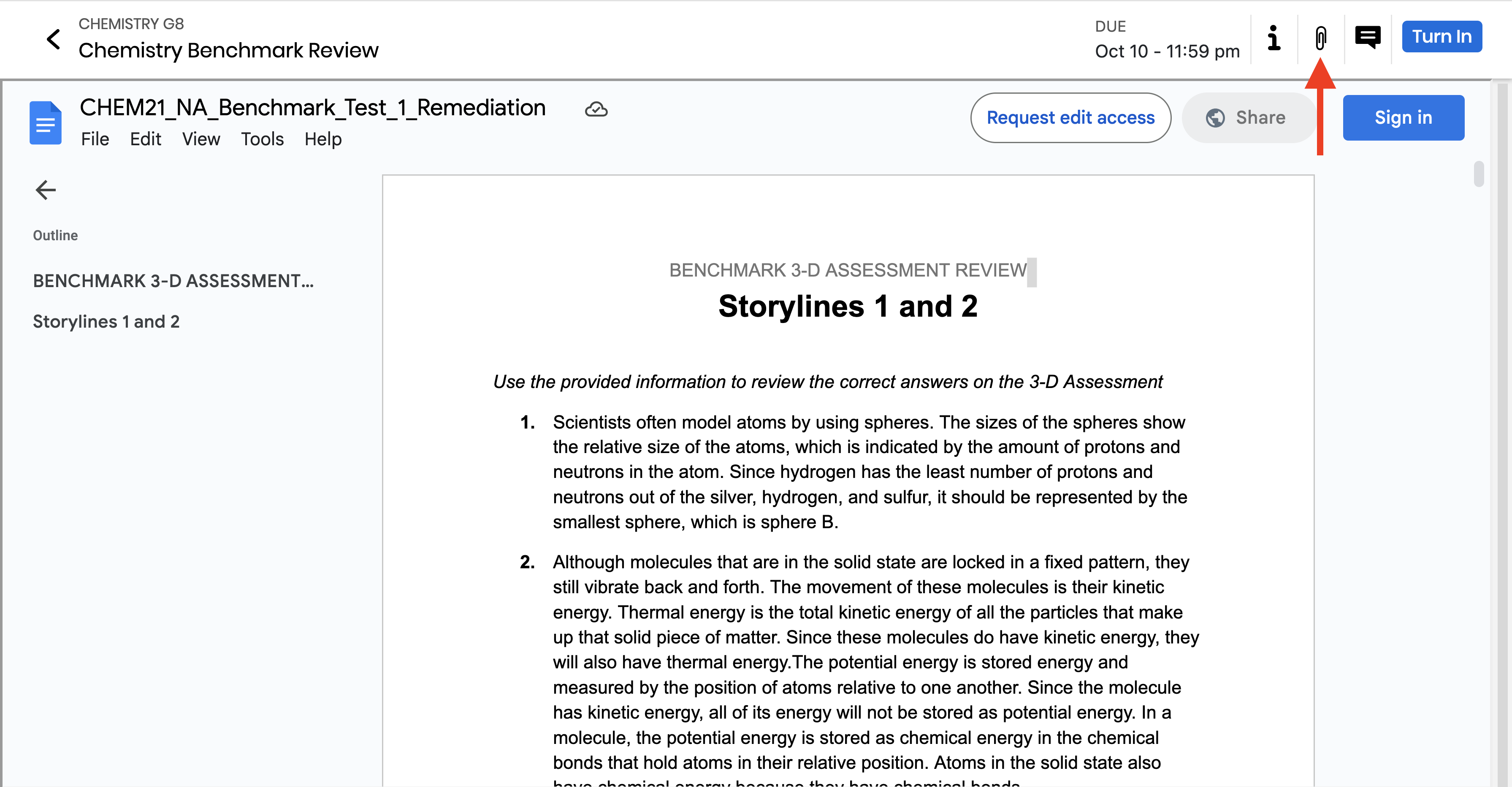
Select the paper clip attachment icon.

-
In the window that appears, select the completed Google Docs assignment from your device and press Attach.

-
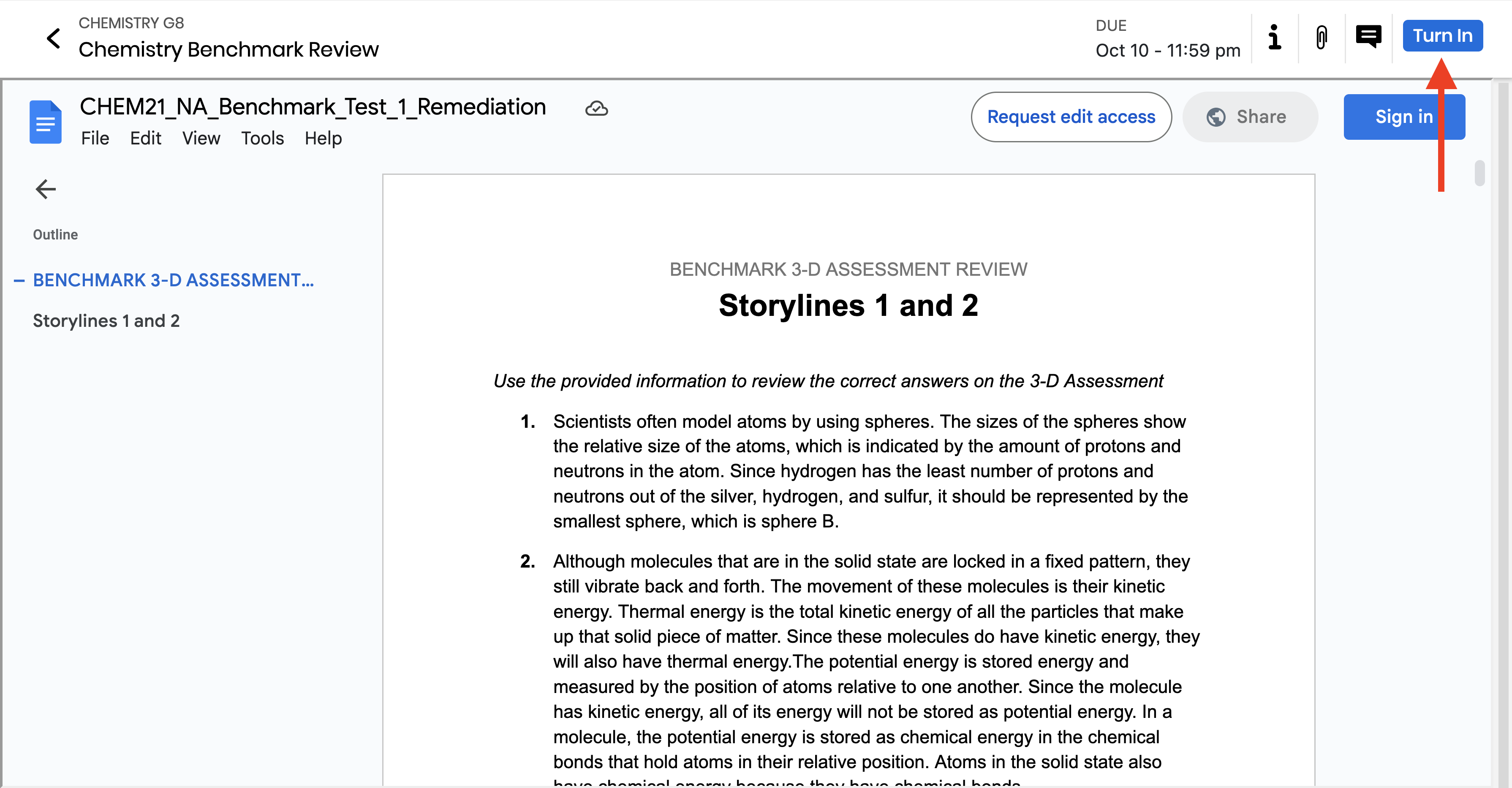
When you're ready, you can turn your assignment in by pressing the Turn In button.


Great job! You've now accessed, completed, and turned in your Google Docs assignment without needing a Google account.