Access Your Classes
EasyBridge districts can access all classes on the learning platforms directly through EasyBridge without signing in again. Use the steps below to navigate to your classes and assignments from EasyBridge.
Sign in to your SIS or district portal and go to EasyBridge
EasyBridge access can vary depending on how your district has been set up. A common starting place is your Student Information System (SIS) or your district portal. However, if this differs from the instructions you received, be sure to follow your teacher's instructions on how to access EasyBridge. To access your classes, follow the steps below:
- Sign in to SavvasEasyBridge. You will see a list of your classes along with any products your teacher has added for you.
- Select the product name below your class. This takes you directly to your learning platform.
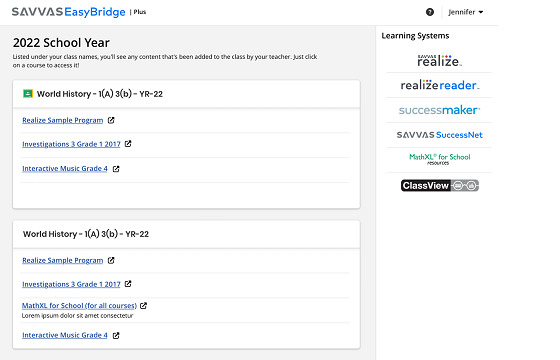
If you know the learning platform used for the class, select the learning platform name under the Learning systems to access your class and assignments.
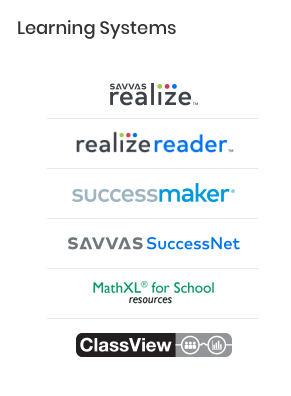
 SuccessMaker
For students using SuccessMaker, the quick link under Learning systems takes you directly to the SuccessMaker platform. The SuccessMaker-Realize link under your class name takes you to Realize. From Realize you can access your SuccessMaker assignment. To learn more about navigating to your program in Realize, go to Browse Your Programs.