Home Page - Explore
Everything you need is on the home page of EasyBridge. After logging in, you will see the following links in the upper right corner: Welcome [your name], Help, Support & Training, Settings, and Sign Out. Just to the right of the Sign Out link, you will see a graphic confirming you are in EasyBridge Plus. Keep reading below to learn what information these links provide.
Name
Verify you have accessed your own classes by looking for your name after Welcome. If you have accessed someone else's classes by mistake, you will see their name after Welcome.
Support & Training
Access the Support & Training page on SavvasEasyBridge.com to locate additional resources related to your EasyBridge solution.
Help Link
Go to EasyBridge online help files by selecting the Help link to the right of your name.
Sign Out
Sign Out securely from EasyBridge and your integrated products by selecting the Sign Out link to the right of Support & Training.
Classes & Products
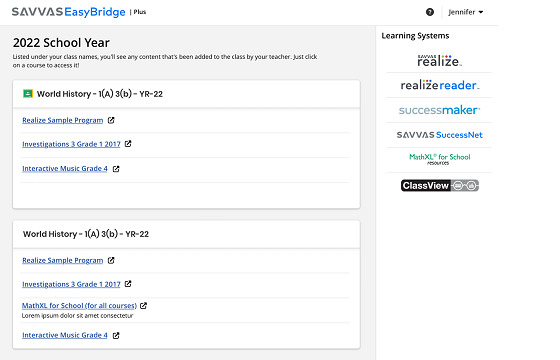
All of your classes with integrated curriculum are found on the homepage of EasyBridge. If you have multiple classes listed, scroll until you find the class. Products assigned to your class by your teacher are listed below the class name. This includes any Google Classroom™ classes imported by your teacher, easily identified by the Google Classroom™ icon to the left of the class name.
Learning Systems
You will see the Savvas learning platforms listed under Learning systems. Select the name of the learning platform under Learning systems or select the product link listed below the class name to access your assignments on the learning platform.
MathXL® for School - To access MathXL® for School, select the product link below the class name. The MathXL® for School quick link under the Learning systems takes you to the Resources page where you have access to help guides, system requirements and support. It does not provide access to your class on MathXL® for School.
SuccessMaker -For students using SuccessMaker, the quick link under Learning systems takes you directly to the SuccessMaker platform. The SuccessMaker-Realize link under your class name takes you to Realize. To learn more about navigating to your program in Realize, go to Browse Your Programs.