Build a Custom Test
You can create a custom test using three different types of items. Items include:
-
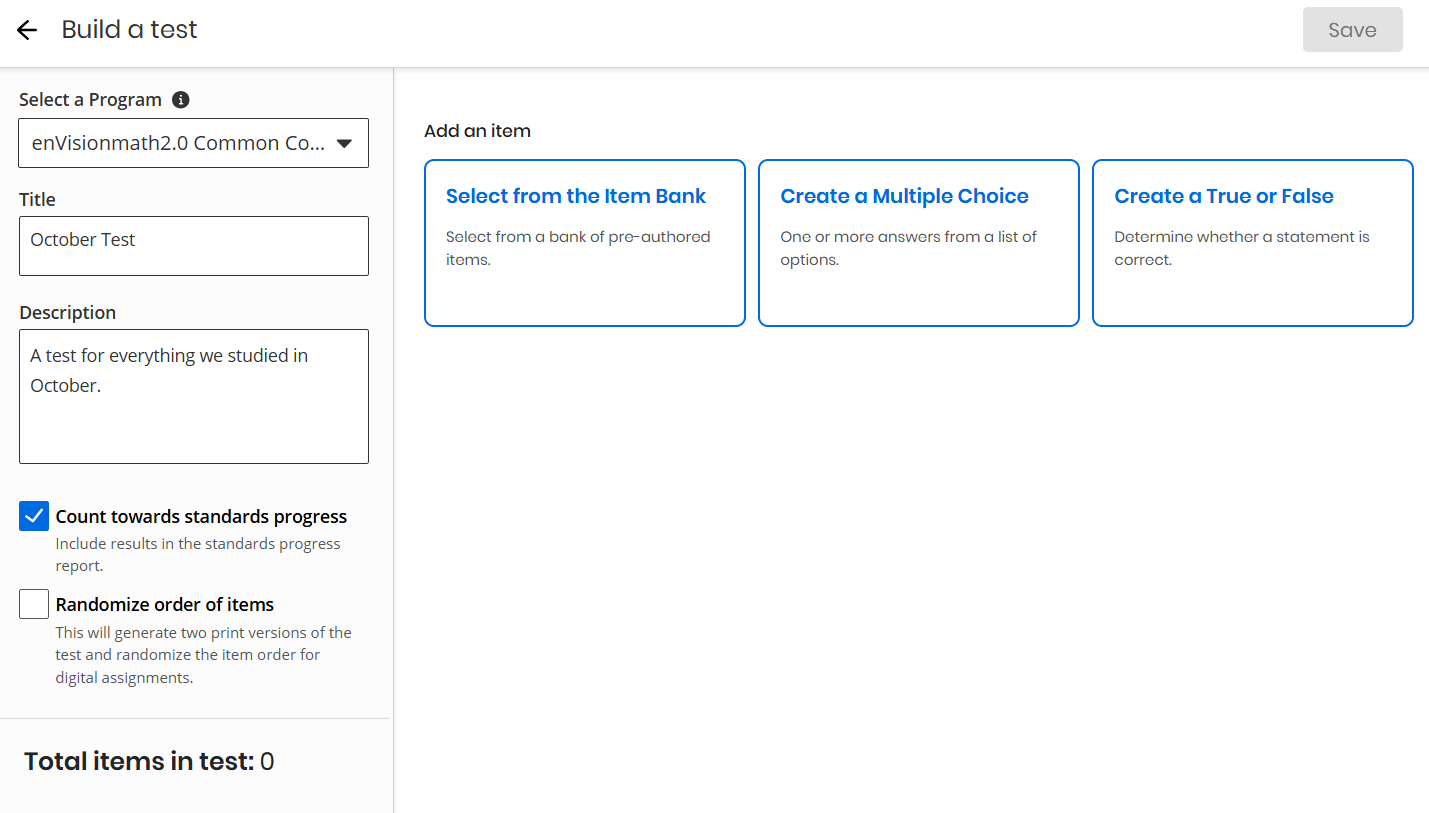
Select from the Item Bank: Students must answer pre-authored items. You choose which pre-authored items to include.
-
Create a Multiple Choice: Students must select one answer choice from a list that you've created. The item defaults to four answer choices, but you can add or remove answers.
-
Create a True or False: Students must choose the true or false answer to a question that you've created.
- Choose to build your test from My Library.
- On the Build a test page, choose a program to use to build the test, then enter the title and description of your test.

If you have more than four programs to choose from, those additional programs are located in a program drop-down menu.
-
Check the box for Count towards standards progress if you would like the results of this test to be included in the standards progress report.
-
Check the box for Randomize order of items to randomize the item order in your test.
- Under the Add an item section, select one of the items to add it to your test: Select from the Item Bank, Create a Multiple Choice, and Create a True or False. You can choose to make your test only one type of item, or you can use a mixture of item types:
 Select from the Item Bank
- Under the Add an item section, choose the Select from the Item Bank option.
- Use one of the following search methods:
To search by standard, select the Search by standard tab, and then use the drop-down menus to specify which standard(s) you'd like to reflect in your test. You can also add more standards by selecting + Add another standard. When finished, select Search standards. Choose the item(s) you'd like to add, then select Add selected items.

To search by keyword, select the Search by keyword tab, enter a keyword in the search box, then search or press the X Clear button.. Choose the item(s) you'd like to add, then select Add selected items.

-
Repeat this process for all items or banks of items that you want to include in the test.
-
When finished, select Save.

 Create a Multiple Choice Question
- Enter the question text in the Question box.
- Use the editing toolbar to add bold, italic, or underline formatting.
- Select the image icon to add an image to the question.
- Select the link icon to add a URL link to the question.
- Select the formula icon to create and add a formula to the question.
- For each possible answer, enter the answer content, and add or remove any extra answer boxes as needed.
- Use the editing toolbar to add bold, italic, or underline formatting.
- Select the image icon to add an image to the answer.
- Select the link icon to add a URL link to the answer.
- Select the formula icon to create and add a formula to the answer.
- Select Add more answers to add more answer banks.
- Select + Add a standard to associate a standard with the question.
- Select which of the answers is the correct answer, and then select Save or Cancel to exit the question without saving.
Create a True or False Question
- Enter the question text in the Question box.
- Use the editing toolbar to add bold, italic, or underline formatting.
- Select the image icon to add an image to the question.
- Select the link icon to add a URL link to the question.
- Select the formula icon to create and add a formula to the question.
- For either possible answer, enter the answer content. The words True and False already exist in the answer text boxes.
- Use the editing toolbar to add bold, italic, or underline formatting.
- Select the image icon to add an image to the answer.
- Select the link icon to add a URL link to the answer.
- Select the formula icon to create and add a formula to the answer.
- Select + Add a standard to associate a standard with the question.
- Select which of the answers is the correct answer, and then select Save or Cancel to exit the question without saving.
- After all test bank items have been chosen, do one or more of the following:
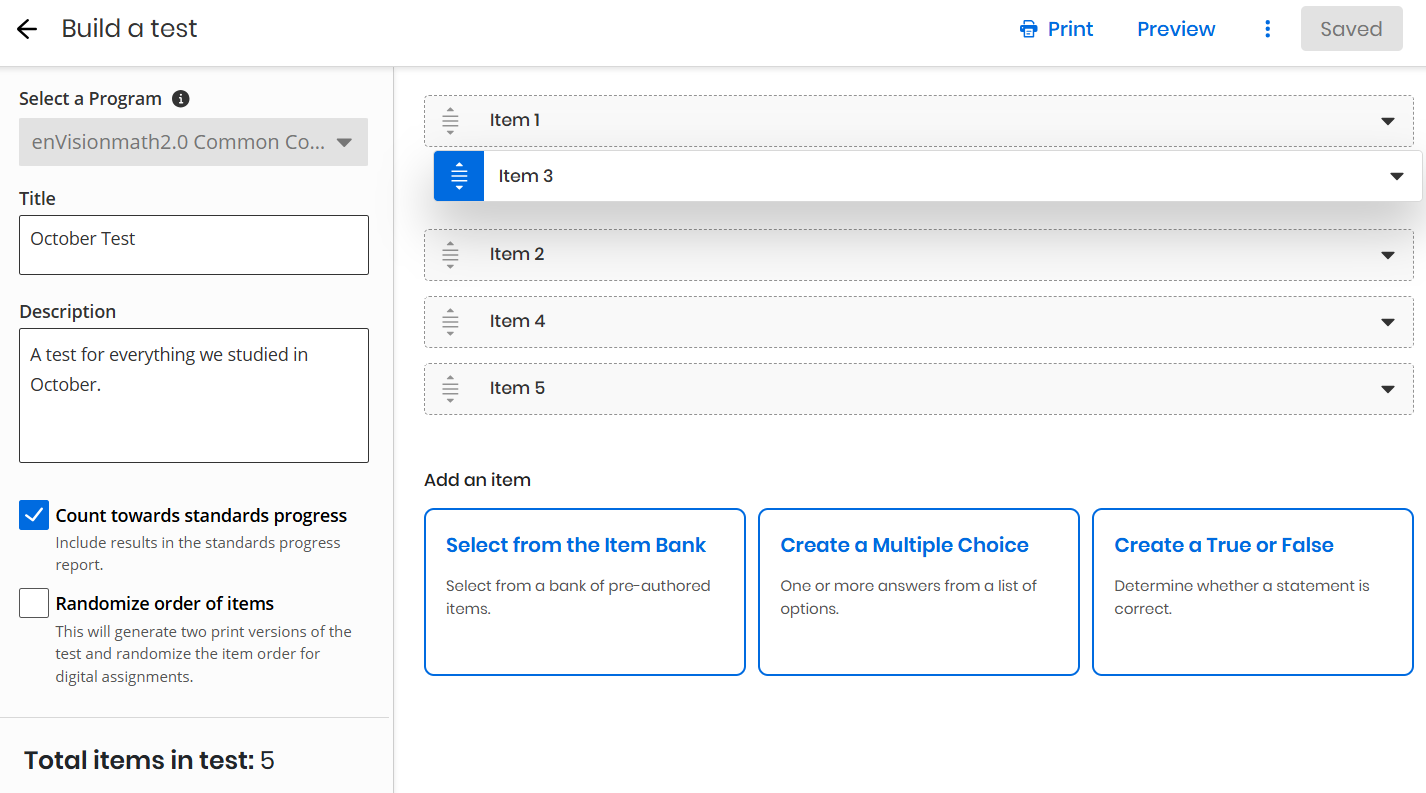
Rearrange the test items
-
Select and drag questions to reorder the test questions.

-
Select Save to save your changes.
 Preview the test
-
Select Preview on the top of the page.
-
When you are done previewing the test, select Exit to return to the edit page.
Print the test
Select Print on the top of the page to print the test. The test queues to the printer.
- When finished, select Save.
You can easily assign your custom tests from My Library.
See Also